
A Basic Canvas Template
It will help if you have some knowledge of HTML and Javascript. If not,
hopefully this basic canvas template will make sense after it is
explained. Lets take a look at at our starting point:
<!DOCTYPE HTML>
<html>
<body>
<canvas id="canvas" width="200" height="200"></canvas>
<script>

var can = document.getElementById("canvas");
var ctx = can.getContext('2d');

ctx.fillStyle = "black";
ctx.fillRect(0, 0, 200, 200);

ctx.fillStyle = "yellow";
ctx.fillRect(50, 50, 100, 50);

</script>
</body>
</html>
This code is about the minimum you must have to create a HTML canvas
and draw in it. We drew a black rectangle over the
entire canvas. This can serve as the background to a scene. Then we
drew a yellow rectangle over the black one.
In lines 1-5 we are setting up a minimal HTML page. It is minimal
because it doesn't include a head or title, but it will work fine.
Lines 7-14 are inside the script tag (in between the <script> and
</script>) which indicates it is JavaScript.
- Line 1 Lets the browser know we are using HTML5
- Line 2, 3 and 5 are all the beginnings of xml style tags
- Line 4 is our canvas element. We specify its size as 200x200
- Line 7 Fetches the canvas object using its id that we set on line 4
- Line 8 Creates a context object which is used to draw on the canvas
- Line 10 This is where drawing starts. This sets the fill color to black.
- Line 11 Draws a rectangle from the coordinates 0,0 (top-left corner), and uses the canvas width and height to completely cover the canvas
- Line 13 Changes the fill color to yellow
- Line 14 Draws a rectangle starting from x=50,y=50 with a width of 100 and height of 50
Using this template, you can start to insert your own drawing commands.
To learn the drawing commands such as circles, rectangles, and lines,
look to the w3schools tutorial at
w3schools HTML5 Canvas
. W3schools is a great site to learn commands but it dosen't guide you towards
creating more complex games or applications.
Try it Yourself!
Try it out by opening up your text editor and pasting the template in. Then
save it with the .html file extension. Now when you double click it your browser
will open it up and display the canvas. In the future you can simply save your
code and hit refresh on the browser.
If you are Having Problems
If you don't see anything, the browser may be prompting you to display "Active"
content. It is also a good idea to open up your browser's developer tools. Press F12
and look for the "Console". If you have any errors in the code the console will
let you know what line to look at in order to fix them. Common errors that will
keep the canvas from displaying are open parentheses, brackets, or quotes.
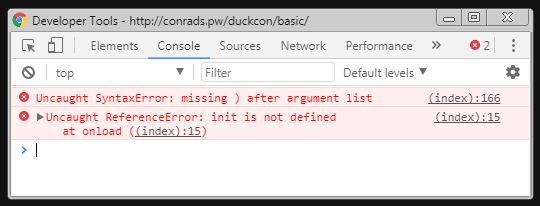
This is an example of what a Syntax Error looks like. It is saying that parentheses were opened but not closed on line 166.
Lets go Fullscreen!
Usually the first thing you will want to do is to make your canvas larger. You can have the canvas automatically resize to the window size inside your JavaScript. If you do this you might want to create variables that equal your width and height. The Body element will have small margins (space around the edge) by default. When you go fullscreen you probably want to set the margins to zero. It is also a good idea to turn off the scrollbars with "overflow:hidden;".
<!DOCTYPE HTML>
<html>
<body style="margin:0px; overflow:hidden;">
<canvas id="canvas"></canvas>
<script>

var can = document.getElementById("canvas");
var ctx = can.getContext('2d');
var cw = can.width = window.innerWidth;
var ch = can.height = window.innerHeight;

ctx.fillStyle = "black";
ctx.fillRect(0, 0, cw, ch);

ctx.fillStyle = "brown";
ctx.fillRect(cw/2 - 50, ch - 50, 100, 50);

ctx.beginPath();
ctx.moveTo(cw/2 - 70, ch - 50);
ctx.lineTo(cw/2,      ch - 90);
ctx.lineTo(cw/2 + 70, ch - 50);
ctx.fill();

</script>
</body>
</html>
This time we set the canvas width and height to match the window. We can access the window's size
with window.innerWidth and window.innerHeight. We set the variables cw and ch so that we can
access the width and height when we draw without typing too much. You can easily place an object
in the middle of the screen by dividing the width by 2. You will learn a lot just from trial and
error, so if it looks confusing just play around with it and you will see what happens when you
make changes to your code.
- Line 3 We now set the style for the body to turn off margins and scrollbars
- Line 9 Set the varible cw and the canvas width to equal window width
- Line 10 Set the varible ch and the canvas height to equal window height
- Line 15 We are going to paint with a "brown" color this time
- Line 16 When we draw the rectangle we want it to be bottom center. In order to get the x position centered we find the half-way point by dividing the width in half. Then we subtract 50 since the rectangle's width is 100. To determine the y position we use ch to get the value at the bottom of the screen, then we subtract 50 to go up 50, which is the rectangle height
- Line 18 Now we are going to draw a triangle using lines. The first step is to start a path
- Line 19 In order to draw a line we first move to the first point of the line
- Line 20 The lineTo command draws the first line, now the next line will start from this point
- Line 21 The second lineTo command goes to the third point in our triangle, All the area inside can now be filled
- Line 22 The fill command fills in the triangle created by the 3 points
We now have a little brown house in the center of the screen. You might be wondering why you don't acctually see the lines we drew. You can make the canvas draw lines with the stroke() command. Make sure to set up your lineWidth and strokeStyle (the color) before you draw the lines.
ctx.lineWidth="3";
ctx.strokeStyle="yellow";
ctx.stroke();
HTML Colors
So far you have seen colors given by thier name, such as "black" and "yellow". It is useful to know how to specify colors in other ways. You can also specify colors using hex: #ff00ff or with red, green, and blue values: rgb(255,0,255). One advantage to using rgb is that you can specify transparency with the alpha channel: rgba(150,200,255,.5). Alpha values (the last one) range from 0 (transparent) to 1 (opaque).
<!DOCTYPE HTML>
<html>
<body style="margin:0px; overflow:hidden;">
<canvas id="canvas"></canvas>
<script>

var can = document.getElementById("canvas");
var ctx = can.getContext('2d');
var cw = can.width = window.innerWidth;
var ch = can.height = window.innerHeight;

ctx.fillStyle = "black";
ctx.fillRect(0, 0, cw, ch);

//Yellow Rectangle
ctx.fillStyle = "#ffff00";
ctx.fillRect(50, 50, 50, 100);

//Semi-transparent Red Circle
ctx.fillStyle = "rgba(255, 0, 0, .5)"
ctx.beginPath();
ctx.arc(100, 100, 50, 0, Math.PI*2);
ctx.fill();

</script>
</body>
</html>
You can see in this example that a yellow rectangle was drawn using "#ffff00" with a semi-transparent red circle drawn over the top of it. For more information on colors or shape commands look to w3schools.com.